Guides
Meme Caption Generator Guide: Captions, Fonts and Export
Full walkthrough of the Meme Tap meme caption generator: upload vs templates vs suggested photos, every text control, PNG/JPG export, and what the tool does not do.
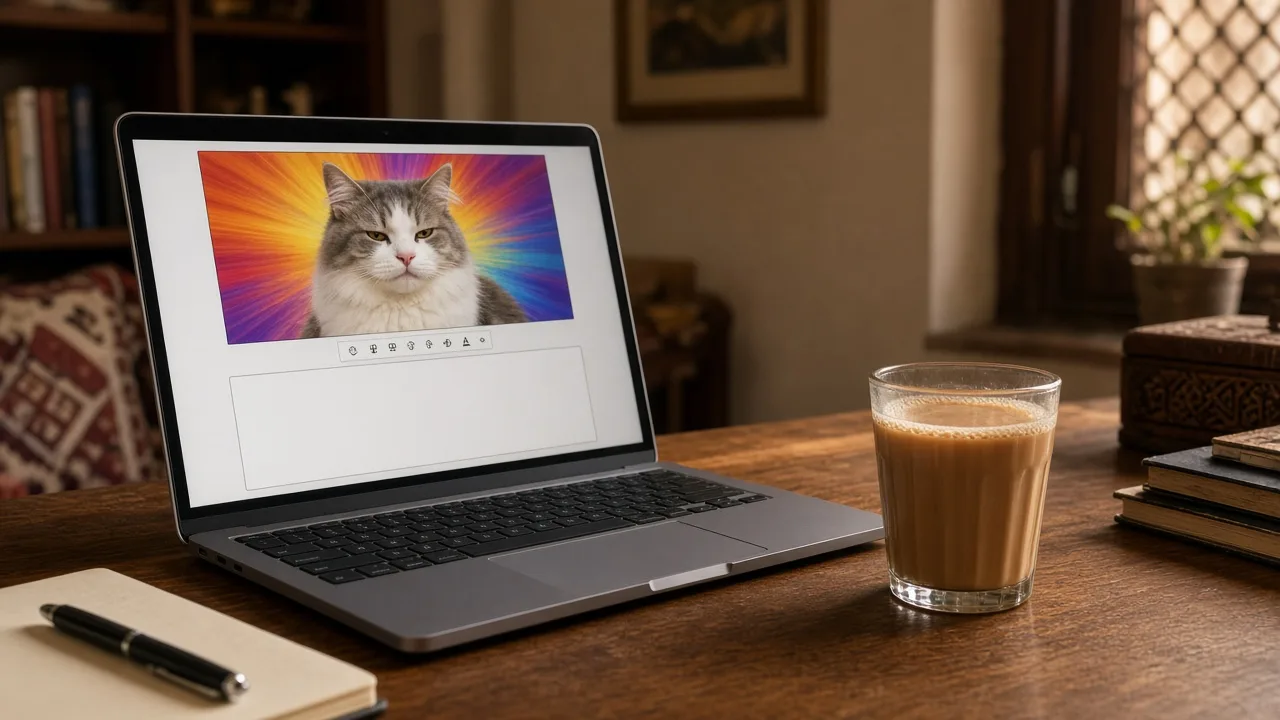
The Meme Tap meme caption generator is a free, in-browser meme maker. Open a photo, type captions, drag the text into place, and download a PNG or JPG. Drawing happens on the device. The picture is not uploaded to Meme Tap while you edit, and there is no account step.
This is the full guide for that page: every button, how the three ways of choosing a picture differ, how boxes and fonts behave, what the download files look like, and what the tool deliberately does not include.
Layout of the tool
On a wide screen the page splits into two columns. The left column holds the live preview, a short drag hint, and Suggested images in one row. The right column holds Text boxes. Above both columns sit Upload, Template, and Download.
On a phone the same blocks stack: toolbar, preview, suggested thumbnails, then the text panel.
The preview is a canvas sized to the photo. Overlay handles sit on top so you can drag boxes without changing the pixels until you download.
Three ways to choose a picture
These three actions look similar. They are not.
1. Upload image
Press Upload and pick a file. Allowed types are JPG, PNG, and WebP. Anything else shows “Use a JPG, PNG, or WebP.” Files larger than 12 MB show “Keep the image under 12 MB.” HEIC from many iPhones is not accepted until it is converted.
An upload replaces only the background. Top, Bottom, and any extra boxes stay where they are, with the same wording and style. That is useful when a joke is already written and you want a different photo under it.
The file is read with a local object URL in the browser. It is not sent to our servers for captioning.
Get permission before captioning photos of friends or classmates, and avoid pictures you do not have the right to share.
2. Suggested images
Under the preview, Suggested images lists eight original starter photos (not celebrity stills). Tapping a thumbnail changes the background only, same as upload. Captions you already typed stay put. The active thumbnail is highlighted.
Local scenes:
- Doodh patti — tea setup
- Galli cricket — street cricket
- Load shedding — power cut
- Rickshaw traffic — city traffic
- Barish — monsoon street
General scenes:
- Unimpressed cat
- Blank board — empty whiteboard, good for text-heavy jokes
- Two rooms — two interior panels, good for expectation / reality
These photos are public-domain / CC0 stills (no copyright reserved), not celebrity shots or famous copyrighted meme templates.
3. Template
Template opens a modal titled Templates. Each card shows the photo with its built-in top and bottom lines overlaid. The description on the dialog is: each card is the background plus ready captions; pick one to place both on the canvas.
Choosing a card does three things:
- Loads that photo.
- Replaces the current boxes with a fresh Top and Bottom pair.
- Fills those boxes with the template’s captions, using Nunito and mixed case (All caps off). Extra boxes you added earlier are discarded.
Built-in template lines:
| Template | Top | Bottom |
|---|---|---|
| Doodh patti | Jab doodh patti ready ho | Scene on hai |
| Galli cricket | Bowler ka plan | Wicket le liya |
| Load shedding | WiFi chala gaya | Load shedding ho gayi |
| Rickshaw traffic | Office 9 baje | Tension na lo |
| Barish | Plan: bahar niklo | Bas kar bhai |
| Unimpressed cat | Bhai ye kya ho gaya? | Bill aa gaya |
| Blank board | Today's agenda | Aaj chutti hai |
| Two rooms | Expectation | Reality |
Close the modal without picking a card if you only wanted a look. Nothing on the canvas changes until you pick a card.
Caption boxes
The editor always starts with two boxes named Top and Bottom. Defaults for a fresh page (before any template):
- Position: Top near the upper edge, Bottom near the lower edge, each about 92% of the image width
- Font: Impact
- Align: Center
- Fill: white (
#ffffff) - Outline: near-black (
#111111) - Size: 52
- Outline width: 8
- All caps: on
- Caption: empty
After a template is applied, those two boxes keep the same positions and sizes but switch to Nunito, mixed case, and the table text above.
Selecting a box
- Tap a tab in the Text boxes list.
- Tap the box overlay on the preview.
- Tap empty canvas: the first box in the list is selected.
When nothing is selected, the panel shows “Select a box on the image or from the list.”
Box name
Double-tap (or double-click) a tab such as Top or Bottom to rename it. The name is only a label on the tab (up to 32 characters). It is not drawn on the meme. An empty name becomes “Box” so the list never goes blank.
Caption
The Caption field is a three-line text area. The placeholder is “Bhai ye kya ho gaya?” Type English, Roman Urdu, or a mix. Text wraps automatically to the current box width. Empty captions draw nothing.
Add box
Add box creates another layer. The new box is named Box 3, Box 4, and so on, placed around the middle of the image, with the text “New text”, All caps off, and the same default style as a new Top box otherwise. Select it immediately after adding. Each box has its own font, colours, size, outline, and alignment.
Remove box
Remove box deletes the selected box. It appears only when more than one box exists. The last remaining box cannot be removed, so the canvas always has at least one caption slot.
Moving and resizing on the canvas
Under the preview: “Drag a box to move it. Use the corner to resize width.”
- Drag the box body to move it. It stays inside the photo; it cannot be dragged fully off the edges.
- Drag the corner handle to change width only. Minimum width is about 18% of the image. Height of the letters comes from the Size slider, not from stretching the handle.
- Wider boxes wrap onto fewer lines. Narrower boxes stack words.
Styling controls (per selected box)
Every control in this list applies only to the selected box.
- Font: Impact (heavy classic meme), Nunito (rounder, used on templates), or Arial (plain, better for long sentences).
- Align: Left, Center, or Right. Center is the default for top and bottom bars. Left is useful for extra labels.
- Fill and Outline: colour pickers. Defaults are white fill and dark outline.
- Size: slider 18–120, labelled with the current number, default 52.
- Outline width: slider 0–18, default 8.
0removes the stroke. - All caps: checkbox. On a fresh Top/Bottom it starts checked. Templates turn it off so mixed-case Urdu stays readable.
Readability checklist:
- Check the caption on the busiest part of the photo, not the empty sky.
- Raise Outline width if letters disappear into the background.
- Lower Size before narrowing the box if a line wraps into a tall stack.
- Turn All caps off for long Roman Urdu lines.
Writing Roman Urdu
Type Roman Urdu straight into Caption. Turn All caps off and pick Nunito or Arial if mixed case reads better. Lines that fit these scenes well include “Bhai ye kya ho gaya?”, “Scene on hai”, “WiFi chala gaya”, and “Wicket le liya”.
Download: PNG and JPG
Download sits on the top bar next to Template. It stays disabled until the current image has finished loading. Press it to open a menu, then pick a format.
| PNG | JPG | |
|---|---|---|
| Best for | Sharp letters, screenshots, thin outlines | Smaller files for chat apps |
| Quality | Lossless | JPEG quality 0.92 |
| Filename | meme-tap-caption.png | meme-tap-caption.jpg |
The export matches the source photo’s pixel size. Captioning a large camera photo produces a large download. Overlay handles are not baked into the file; only the picture and the drawn text are.
If export fails, the page shows “Could not export the meme.” Try another format or a smaller source image.
Files land in the browser’s usual downloads folder. Nothing is stored in a Meme Tap account.
What this tool does not do
It is a caption layer on one still image, not a full studio:
- No crop, rotate, filters, stickers, GIFs, or video
- No recorded audio on the download (still image only)
- No auto-save or cloud library; refresh the page and unsaved work is gone
- No celebrity or copyrighted meme packs; starters are CC0 / public-domain photos
- No watermark from the editor
Common mistakes
- Using Suggested images when you wanted the canned joke. Thumbnails keep your current text. Open Template if you want the pre-written Top and Bottom lines.
- Uploading after a template and wondering why the joke stayed. Upload does not clear captions. Change the text, or pick another template to reset both.
- Text too close to the edge. Apps crop previews. Keep a small margin.
- Low contrast. Yellow on sky or grey on concrete fades; use outline.
- Long Impact + All caps. Split across two boxes or switch to Nunito / mixed case.
- Expecting the box name on the meme. Only the Caption field is drawn.
Adding sound to a captioned meme
The download is a still PNG or JPG. For a short video meme, combine that frame with a clip in a video editor. Meme Tap soundboards are one source for those clips.
A short thud on the punchline, a low spoken reaction on a disappointed caption, or a light loop under an awkward pause are typical pairings. The reaction sounds board groups short responses. Pakistan trending fits Roman Urdu captions.
A downloaded clip is not a licence. Platform rules and copyright still apply to both the image and the sound once something is posted.
Suggested order of work
- Decide whether you need a blank photo (Upload or Suggested images) or a pre-captioned card (Template).
- Select Top, type the line, then do the same for Bottom.
- Drag boxes off faces and busy areas; widen them if lines wrap too soon.
- Set font, fill, outline, and size; turn All caps off for mixed-case Urdu.
- Add extra boxes only for small labels. Double-tap a tab to rename it if the list gets crowded.
- Download PNG for a sharp file, JPG if the chat app prefers a smaller photo.
Next step
Open the meme caption generator, pick a starter or upload a photo, write the lines, and save a PNG. For a video version, browse what is trending and pair the still with a short clip in a video editor.
Frequently asked questions
Which image formats can be opened in the editor?
Upload image accepts JPG, PNG, and WebP. Other formats, including HEIC from some phones, need converting first. Files over 12 MB are refused.
What is the difference between Upload, Suggested images, and Template?
Upload and Suggested images change only the background; caption boxes stay as they are. Template opens a modal of cards with text already on the photo; picking a card loads both a new picture and new Top and Bottom captions.
How do I get rid of a caption box I no longer need?
Select the box, then press Remove box. The button is hidden when only one box remains, so the last caption cannot be deleted. Extra boxes can still be added with Add box.
What size is the downloaded file?
The PNG or JPG is drawn at the source photo’s width and height. A 1920×1080 upload exports at 1920×1080. The filename is meme-tap-caption.png or meme-tap-caption.jpg. JPG uses a 0.92 quality setting.
Can a sound be added to a meme made with this tool?
No. The editor saves a still PNG or JPG. To pair the meme with audio, download a clip from a Meme Tap soundboard and combine both in a video editor, keeping platform rules and copyright in mind.
Why do captions sometimes look thin on bright photos?
White fill with a low outline width blends into light backgrounds. Raising the Outline width slider or switching to a dark fill with a light outline usually restores contrast.
Is the meme caption generator suitable for school or shared computers?
The editor runs in the browser and needs no account, so it works on most school and shared machines where the site loads. Local network rules still apply, and downloaded files stay in that device’s downloads folder.